Tool for registry hives, similar to the Windows Registry Editor. Single hive files can be loaded, keys and values can be created or changed.
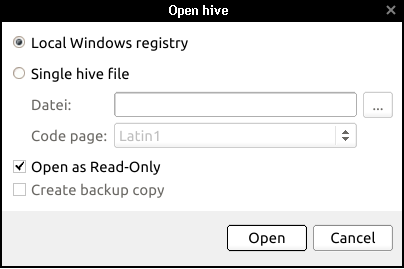
First, select the hives that you want to edit.
| |
| fig. 1: Open hive |
The Hive Editor consists of three basic parts. The Hive List to the left side, the table of values in the upper right hand corner and the data information section in the bottom right hand corner.
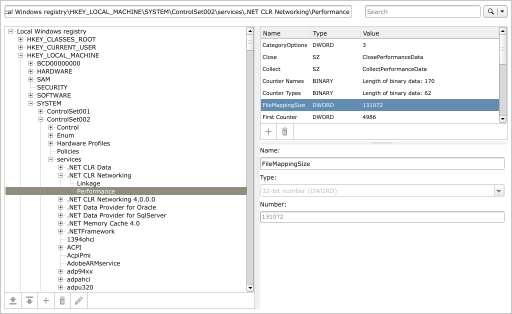 |
| fig. 2: Main screen |
Highlight a key to display its path above the Hive List.
To search within the path, enter a search text in the upper right hand corner. To refine your search, you may choose the following options:
The Hive Editor differentiates between hives as files, in which the single data – keys and values – are filed, and the registry, which usually consists of multiple hives that have the Windows system as mutual context to which they belong. So it is technically irrelevant whether a single hive or an entire registry is edited with the Hive Editor. By loading the current Windows Registry, the user is relieved of having to load the corresponding hives individually.
|
The opened hives are displayed in the hive list on the left side. If multiple hives were loaded, each one will have its own list entry. The hives' various levels (keys) can be expanded and collapsed. If the Windows-Registry is opened with Windows running at the time, it will contain only a root entry in the list, although it technically consists of multiple hives.
 | Load hive: A hive must first be opened in order to be viewed or edited. It will then appear on the hive list and can be searched there. |
 | Unload hive: The hive or registry entry that is highlighted in the hive list will be removed and the involved hive files will be closed. |
 | Create key: A new key will be created at the currently marked position in the list. |
 | Delete key: The selected key will be deleted along with its subkeys and all values. |
 | Edit key: Rename the key currently selected in the list. |
Select a key to display its values in the table in the upper right hand corner.
The information includes the following:
| Add: Add a value to the selected key. |
| Delete: Select a value to be deleted. |
Select a value from the table in the upper right hand corner to display the data within.
